WordPress Website Guide
There are two types of page builders you have access to in WordPress. The main one you will use is Elementor. This is your visual editor that you will use most of the time. The second editor you have is called WP Editor and that is where you’ll make some basic edits to your website.
Below are the details of how to load either of these two editors:
Editing Pages with Elementor
Elementor is the name of the page builder that is used for all visual edits and to use the drag-and-drop builder.
- Go to yourwebsite.com/wp-admin
- Log in
- Go the page you want to edit (i.e. yourwebsite.com/about)
- Now that you are logged in, you should see a black bar at the top of the page. Click Edit with Elementor.
- The page will now load in editing mode, using the Elementor page builder. This is the visual drag-and-drop builder used to make most edits to the page.
Note: We did not include instructions on this page detailing how to use this Elementor builder as it is a self-understood visual builder that has an intuitive interface. Should you need extra assistance, feel free to read Elementor Guides & Tutorials or pay their $16/month fee for support by purchasing the One plan here.
Editing Pages with WP Editor
For a few edits (clearly detailed later in this page), you will need the regular WP builder. Here is how to load this builder:
- Go to yourwebsite.com/wp-admin
- Log in
- Go the page you want to edit (i.e. yourwebsite.com/about)
- Now that you are logged in, you should see a black bar at the top of the page. Click Edit Page.
- Continue to complete the edits listed below.
Editing Pages
Adding a new page
Follow these directions to add a new page to your website.
- Log in to your WordPress dashboard at yoursite.com/wp-admin.
- In the left-hand menu, hover over Pages and click Add Page.
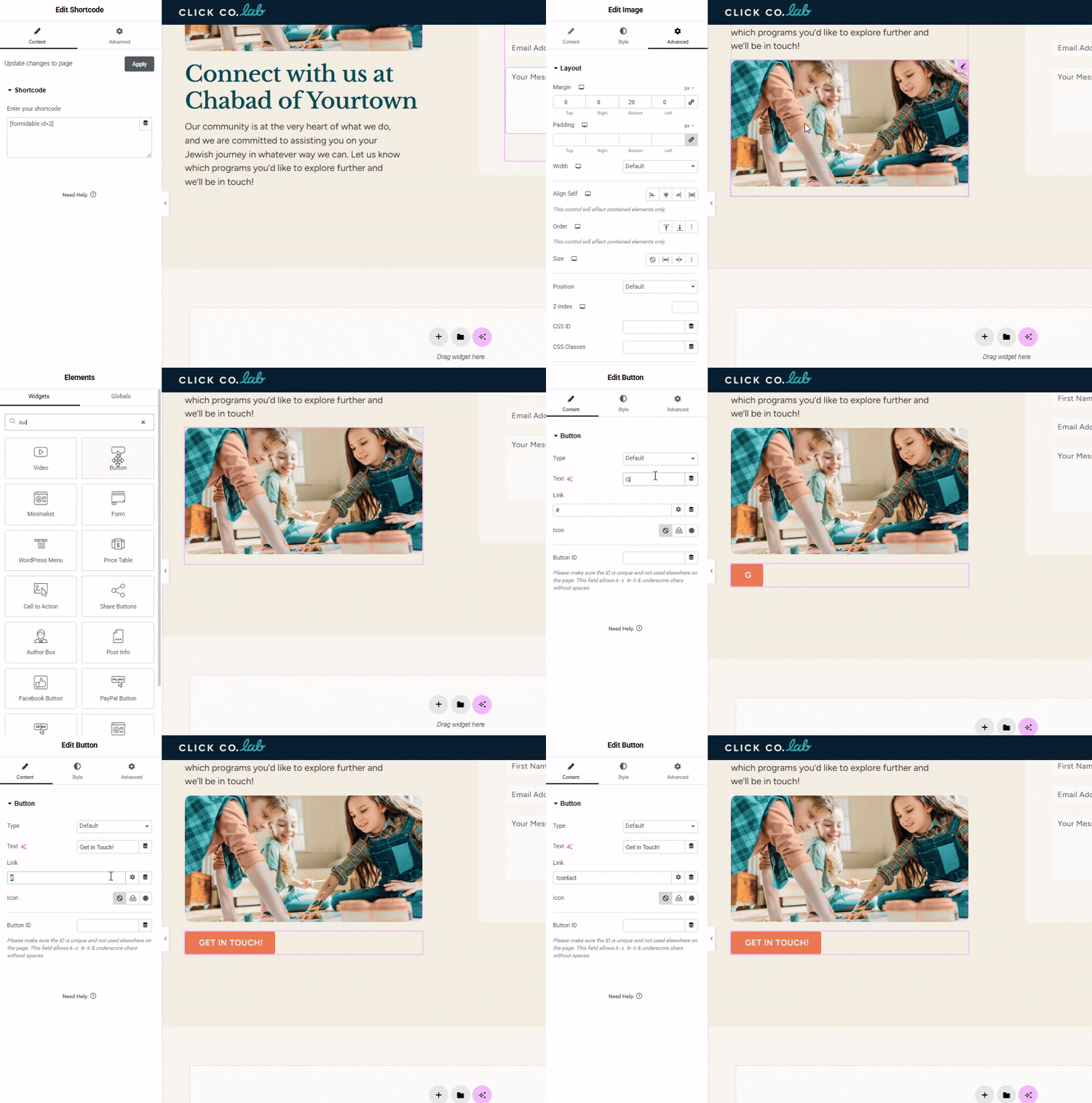
- Click the title area at the top and type your page title.
- Change the page slug (the URL ending) — open the page settings, find the URL/Permalink field, and edit it to a clean, short version of the title.
- Click the Edit with Elementor button to open the page in the Elementor editor.
- Drag and drop any widget you need (container, text, button, video, etc.) from the Elements panel into the editing area and edit to your liking.
- Click Publish to make the page live.
Remove Page Title on Single Page
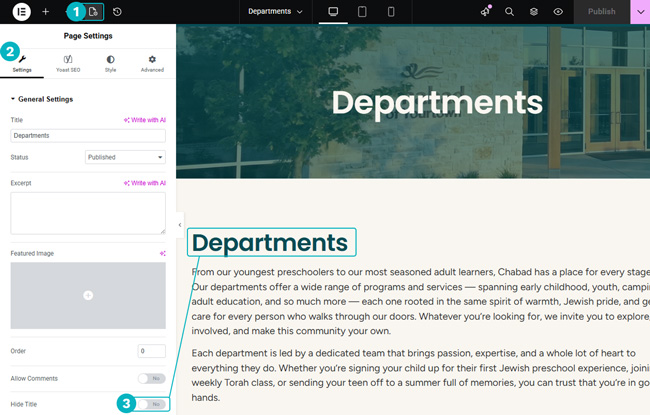
On the top of every page, there is a title. If you’d like to hide it from appearing on a specific page, follow these directions (also shown visually in the video above).
- Click the Single Page Settings icon on the top black bar
- Click Settings
- Click Hide Title
- Click Publish
Add Page to the Navigation
To add a page to your site’s navigation so visitors can find and click on it, follow these steps:
- Log in to your WordPress dashboard at yoursite.com/wp-admin.
- In the left-hand menu, go to Appearance → Menus.
- From the Menu dropdown at the top, select the menu you want to edit (if you have more than one), then click Select.
- On the left, find the Pages panel and locate the page you want to add (use the View All tab or the search box if you don’t see it).
- Check the box next to that page, then click Add to Menu.
- The page now appears at the bottom of the menu structure on the right — drag it up or down to set its position.
- To make it a dropdown/sub-item, drag it slightly to the right under another item so it becomes “sub item.”
- Click Save Menu to apply the changes.
Visit your site to confirm the page shows in the navigation.
Editing Pages with WP Editor
Edit a Page Link
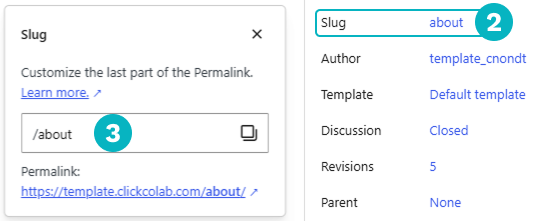
For changing the page link. I.e. to change the link /about-us to /about, follow these steps:
- Follow steps 1-4 of the WP Editor to load the editor for that page.
- On the right sidebar, click Slug
- Edit the link (or “slug” ) to be the new link.
- Click Publish
Set Child Pages
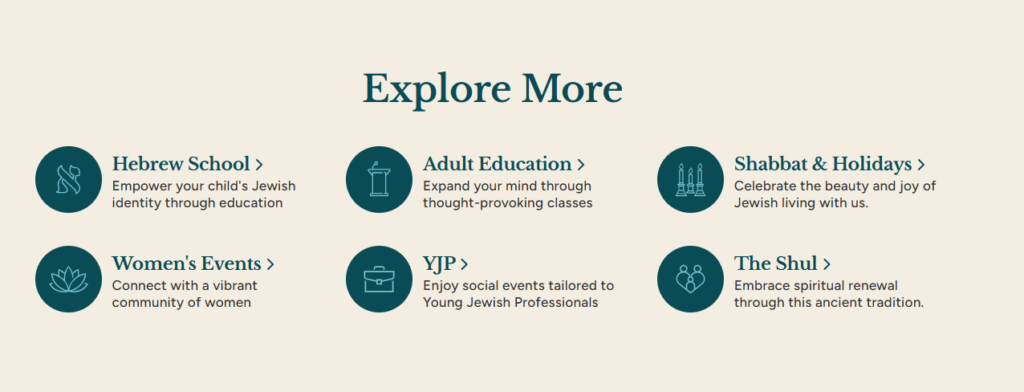
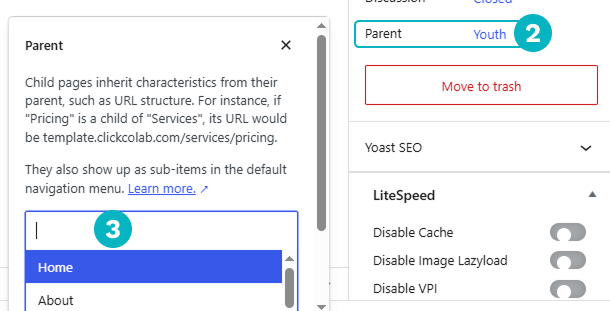
There is an automatic feature on the website that will display all pages that fall under a page, in the Explore More section. So for example, if a visitor goes on your Youth page, they should see Camp, Hebrew School, and CKids under Explore More. To accomplish this, all these pages need to set as “child pages” of the Youth page (which will act as the “parent page”).
Below are instructions of how to edit a page to make it a child page of a parent page.
- Follow steps 1-4 of the WP Editor to load the editor for that page.
- In the right sidebar, click Parent
- Set its parent page
- Click Publish
Repeated Sections
Below is how to control and edit the sections that repeat in a few places on the website.
Six Program Icons
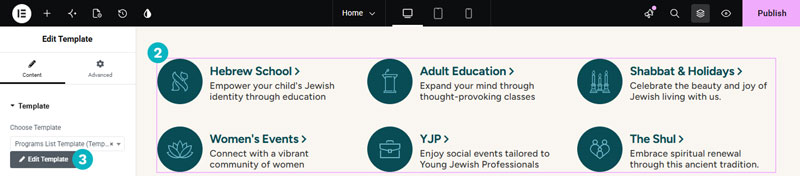
Once in the Elementor editor for the homepage, you will be able to edit all elements with the exclusion of the six icons. The six icons are built using a template item so you will need to go into that template item and edit it there.
And if this page is a parent page (meaning you followed the steps above to set pages as its child page) then instead of showing the list of program, this bottom section will show its child pages.
Below are instructions to completely hide this section for a single page.
- Go to your homepage (chabadyourtown.com) and follow steps 1-5 of the Elementor Editor to load the editor for that page.
- Scroll down to the 6-icons section and click on it
- Click Edit Template in the left sidebar. This will load the editor for the icons template and you will make your changes there and then click publish.
"Explore More" Section
By default, every page has an Explore More section below it, encouraging your website visitor to continue exploring related content on your website. This section will feature your six main programs using the 6-icon program section from your homepage.
And if this page is a parent page (meaning you followed the steps above to set pages as its child page) then instead of showing the list of program, this bottom section will show its child pages.
Below are instructions to completely hide this section for a single page.
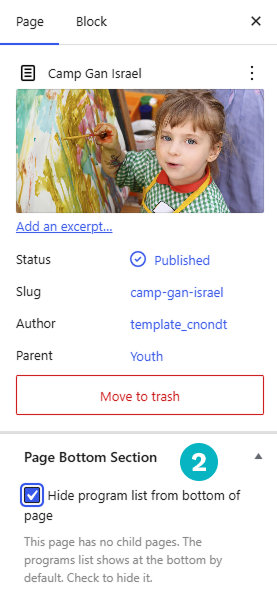
Follow steps 1-5 of the WP Editor to load the editor for that page. Go the page you want to edit (i.e. yourwebsite.com/about)- In the Page tab in the right sidebar, click Hide program list from bottom of page
Event System
Adding Events
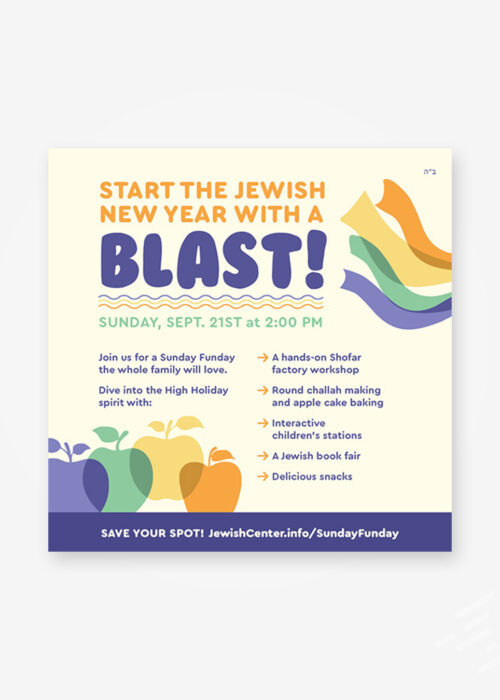
By adding an event to your website backend, it’ll appear in three places: on your homepage under Upcoming Events (if it’s the most upcoming item), on your /calendar page, and on your /events page.
Follow these steps to add events to the website backend:
- Follow steps 1-4 of the WP Editor to load your Admin Dashboard. Click on the tab M.E. Calendar on the Dashboard sidebar.
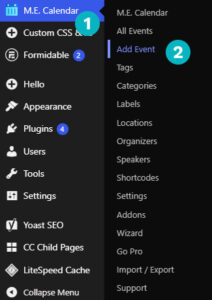
- Click Add Event.
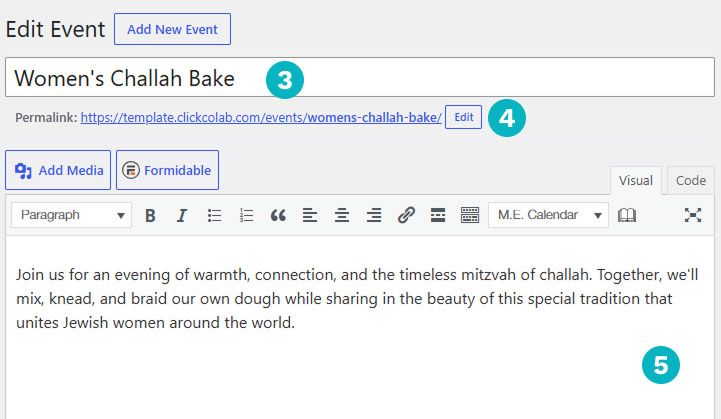
- Add a title to your event.
- Note that the title of your event automatically becomes the “slug” or link of your event. If you want to change that (i.e. change the link yourwebsite.com/womens-challah-bake to yourwebsite.com/challahbake), simply click Edit and change the link to whatever you’d like.
- Add a short blurb about your event in the description area located under the title.
- Scroll down to the Details section. This is where you are going to customize all the details of your event. Add the date and time of your event. In the Advanced section, you can hide the event times if you wish.
- If this event occurs more than once (like a weekly Torah class or monthly Rosh Chodesh program), click on Event Repeating, where you can set the event to recur however many times you want. You can also set the event to stop recurring on a certain date.
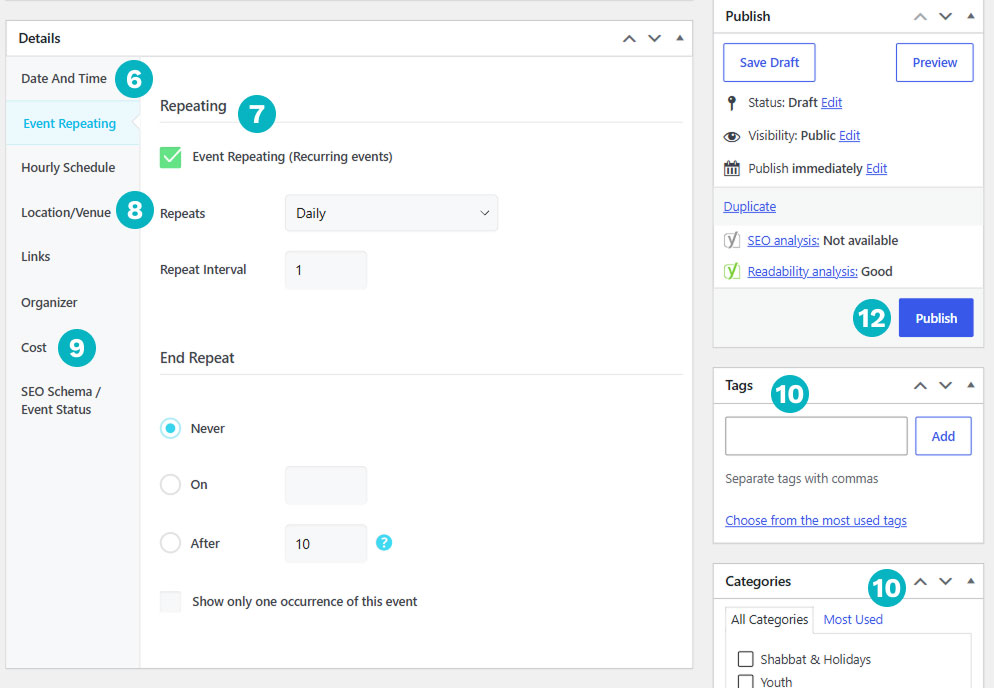
- Set the location of your program by clicking on Location/Venue.
- Set the cost of your event by clicking Cost.
- On the right side of your screen, you’ll see other sections such as Tags or Categories (and others), which are different ways to organize your event. You can apply the appropriate categories and tags to your event.
- Scroll further down until you see the section labeled Featured Image, which is on the right side of your screen. This image will be how the event appears on your calendar and on the event page. Click Set Featured Image and either upload a new image or select an image from your media library.Recommended size for featured images: 1129 × 599
- Scroll back up and click Publish. If you just want to save your progress but aren’t ready to publish, click Save Draft. Your draft can be found in the All Events section.