Below are instructions of how to add new events to your website to ensure that the three most upcoming events appear on the homepage under the Upcoming Events section.
Option A - ChabadOne Event System (recommended)
The ideal way to have people sign up for your event is by creating an event form using the ChabadOne Events System. Below are the basic instructions on how to create one and connect it to the event you set up in Step 1. For a full overview of this feature, please see the ChabadOne Help section.
If you make sure to add all events using ChabadOne Events, then you will have a /events page to use and share with your community to show one list of events they can reserve for and attend. Sample Events Page.
Step 1 - Add the event to your homepage and calendar
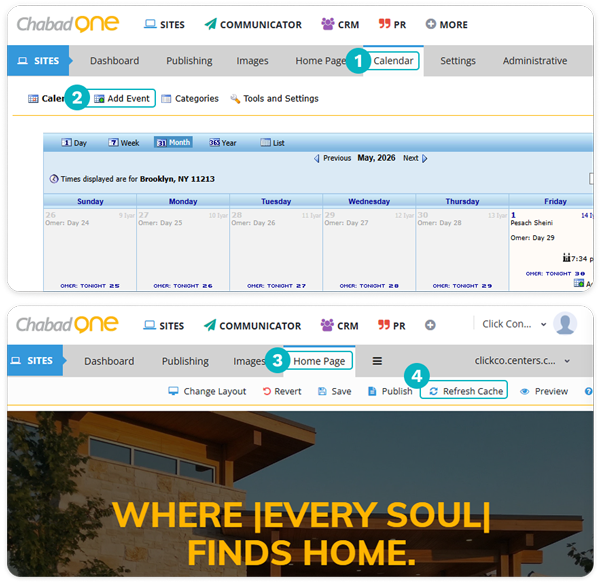
Click the Calendar tab in ChabadOne
Click Add Event and fill out your event details.
To ensure the event shows up on your homepage, click on the Home Page tab.
Click Refresh Cache.
Your event will now show up in the Upcoming Events section on your homepage and on your site’s calendar page
Note: Events will only show up on your homepage if they are taking place within the next three months (aprox)
Step 2 - Connect the Event to its Form
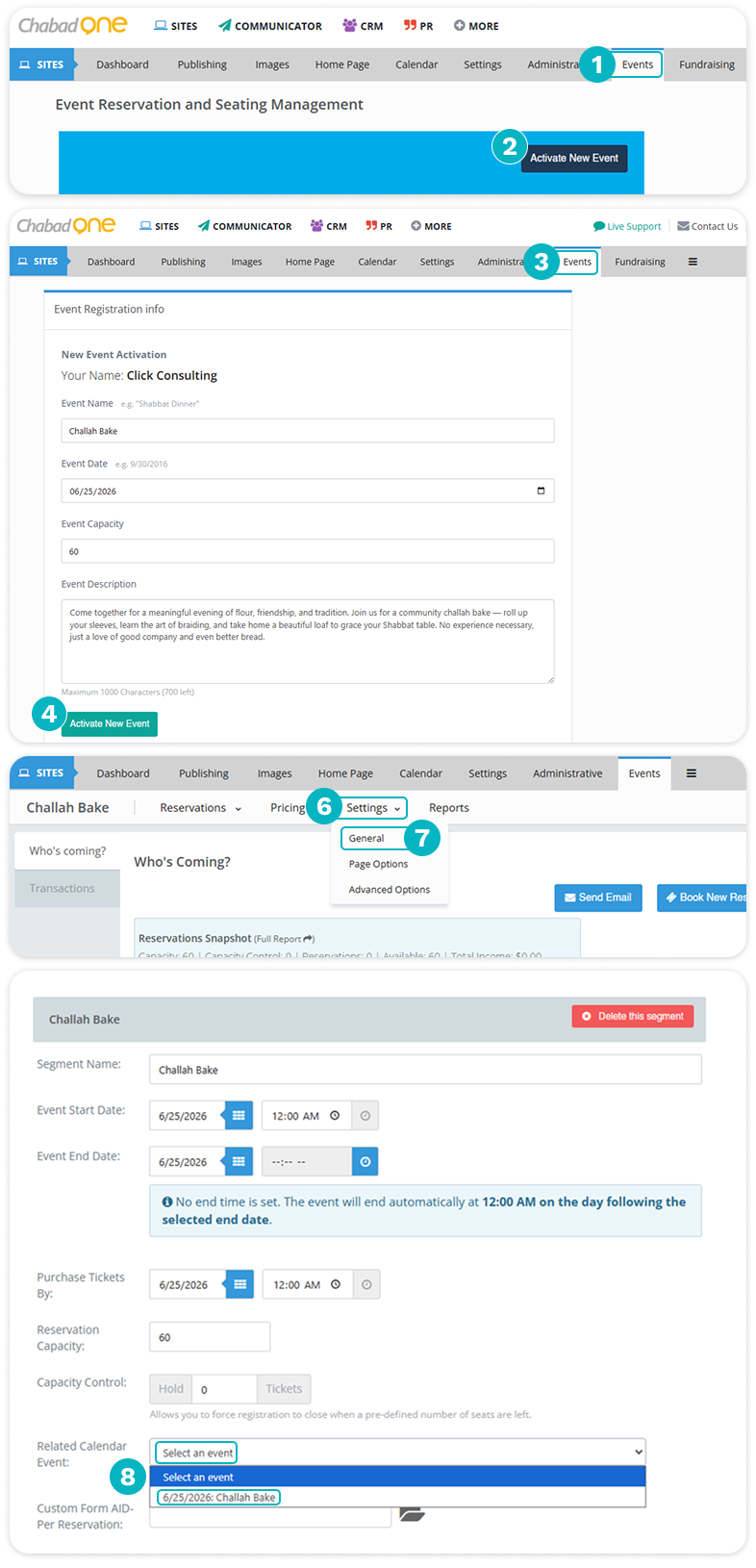
Click the Events tab
Click Activate New Event
Fill out the event details
Click Activate New Event
On the next screen, click “Click here to begin managing this event”
Click the Setting tab
Click General from the dropdown
Scroll down to the Related Calendar Event section and click the correponding calendar event you set up in Step #1.
Click Save
Option B - ChabadOne Form
This option allows you to create a regular form in ChabadOne and then add the link to the calendar event so that when people click the event, they are directed to your form.
Follow these directions after setting up your form.
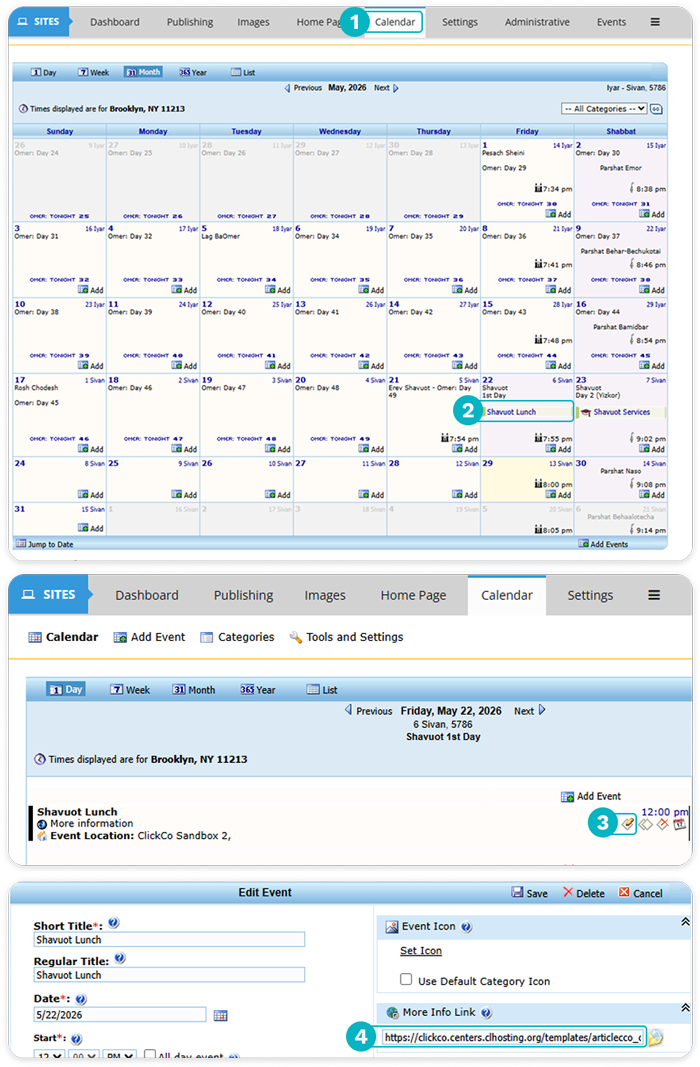
Click the Calendar tab
Find your event and click on it
Click the edit icon
Paste the link of your form into the More Info Link field.